Financial Aid
How to Pay
Log In
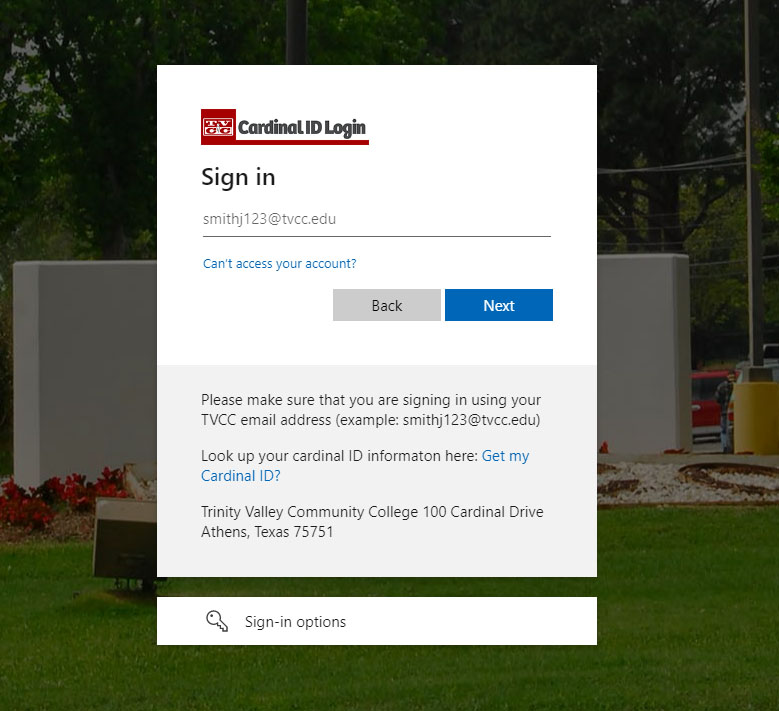
To arrange payment, login to MyCardinalConnect.
- Username
- Default Password
- Lowercase first initial
- Last four digits of Social Security Number
- Uppercase last initial
- Four-digit birth year
- Ex. Jane Doe born in 1998 with social security number ending in 1234 would generate a password of j1234D1998
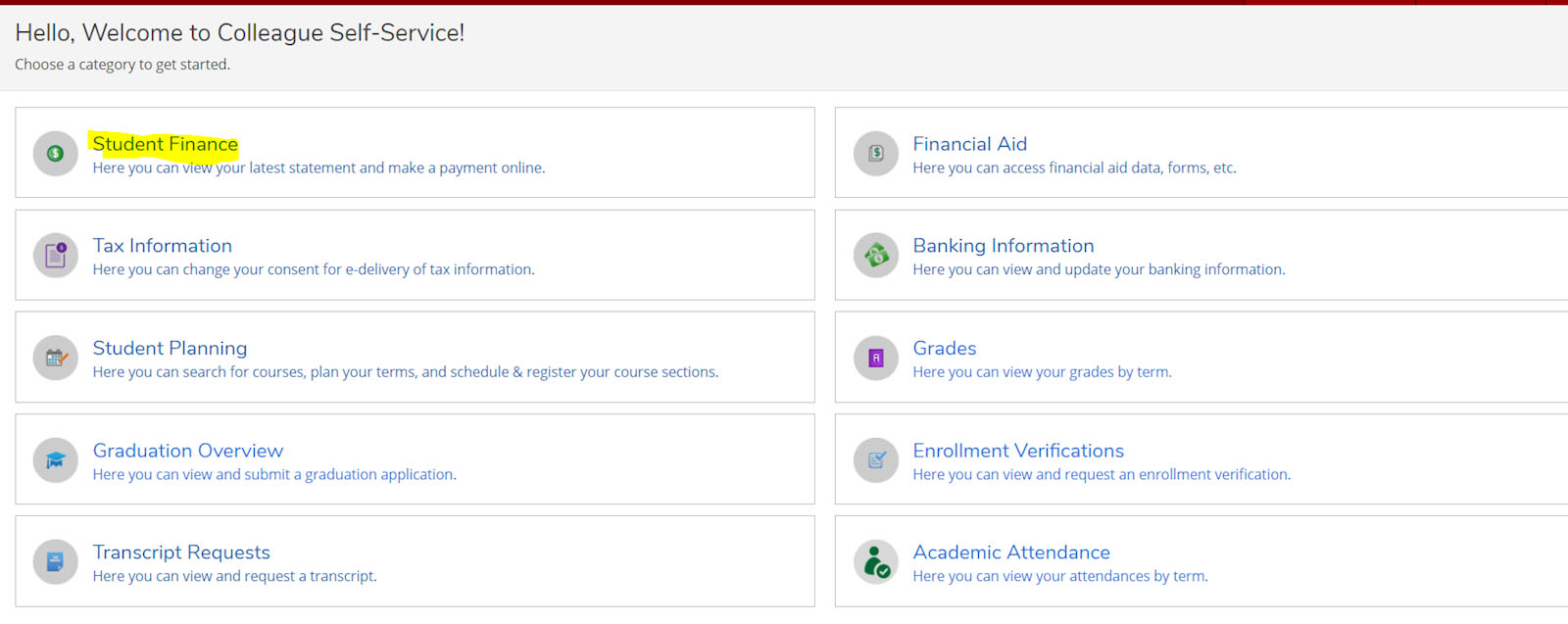
Student Finance
Select "Student Finance" option from the home screen of your student portal. Student Finance is where you can:
- Make payments
- View tuition balances + statements
- Add authorized users
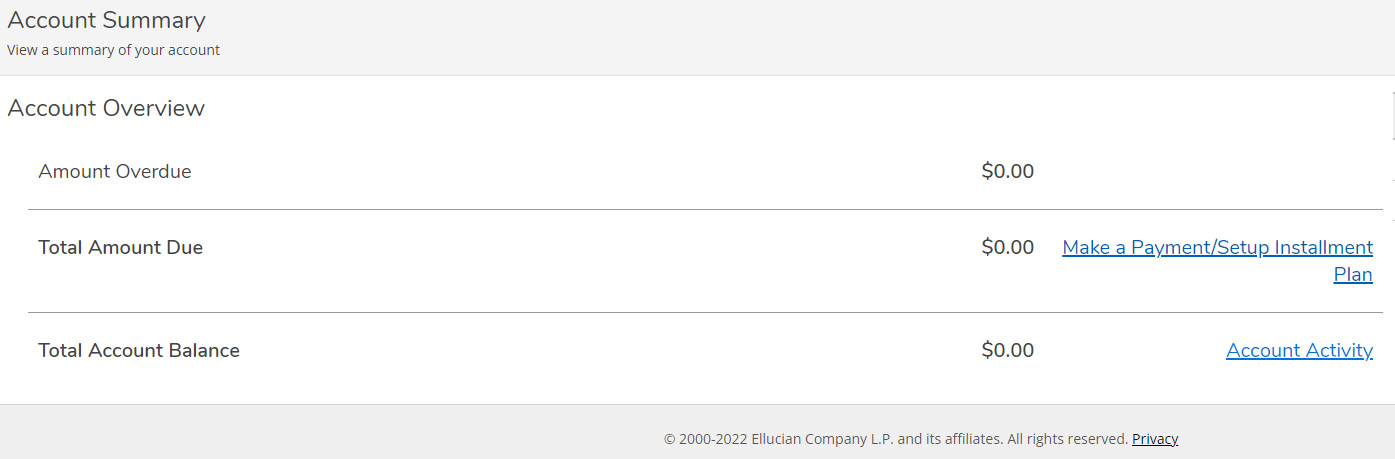
Make a Payment
Select "Make a Payment/Setup Installment Plan" on the right side of your screen.
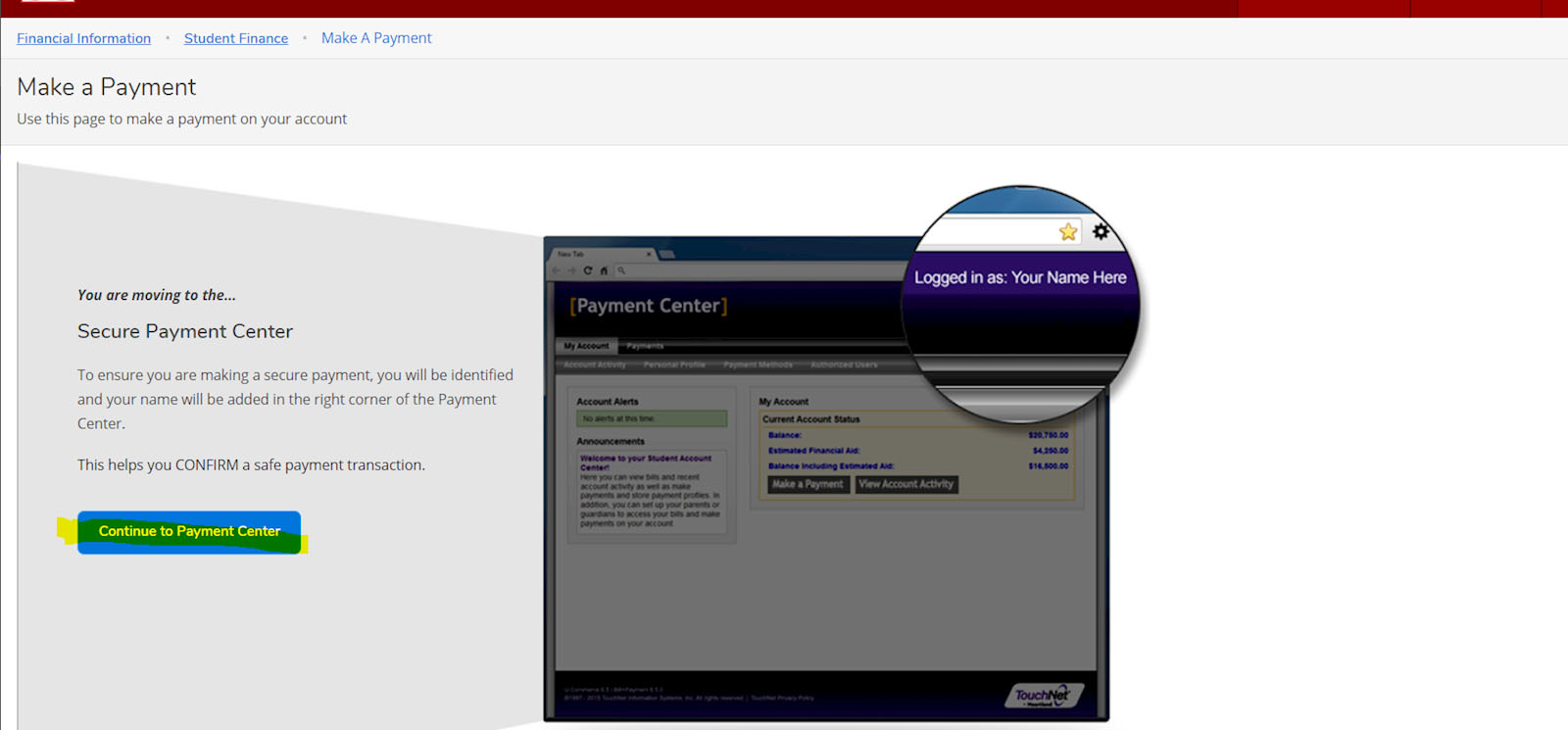
Continue to Payment Center
Click the "Continue to Payment Center" button.
Secure Payment Center
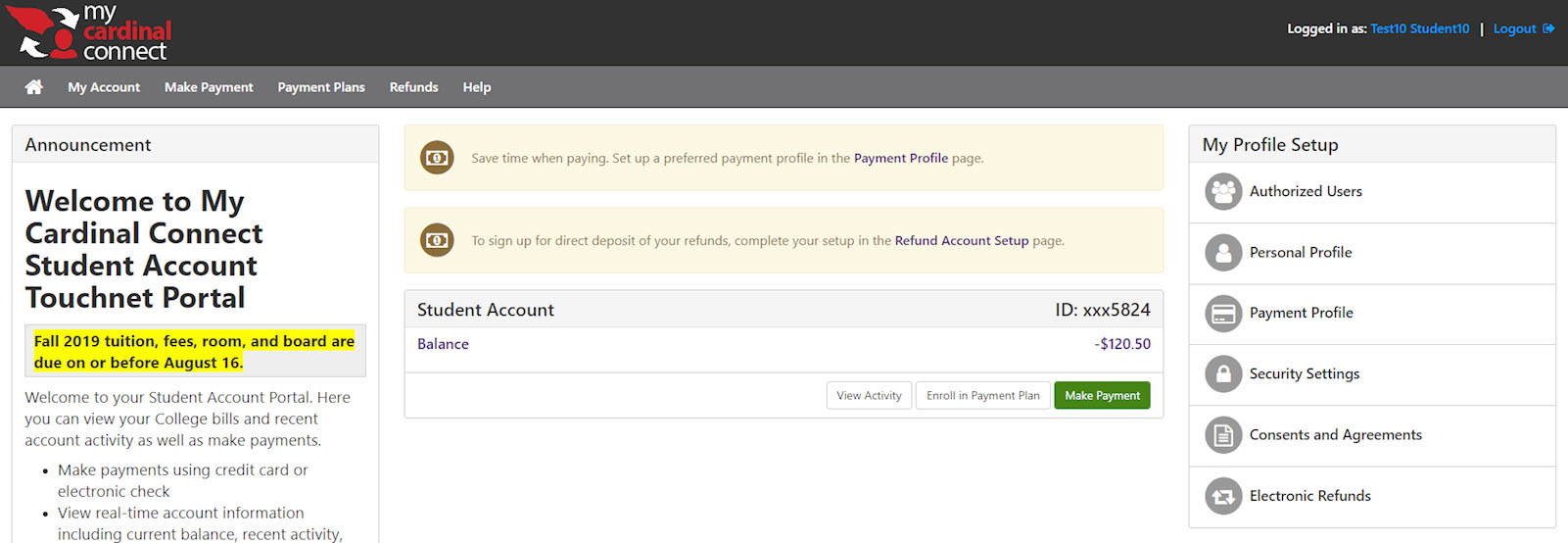
- Check announcements on the left side for tuition due dates and important updates.
- Use the right side to:
- Add authorized users
- Save payment methods
- Update consent agreements.
- Set your electronic refund preference under Profile Setup. This is how over‑payments and financial aid refunds are disbursed.
Make a Payment
- TVCC allows you to pay your bill in full or enroll in a payment plan.
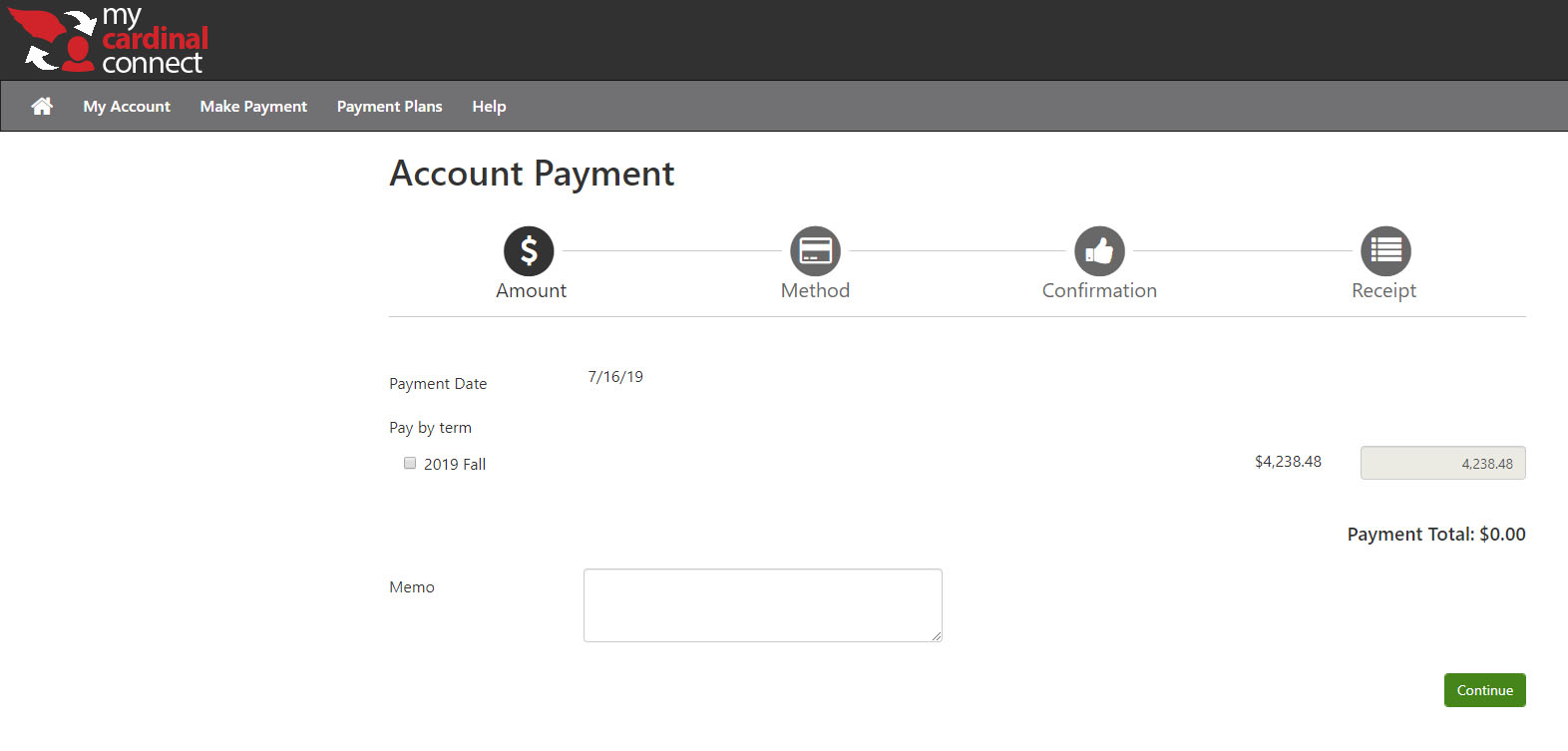
- To pay in full, select “Make Payment” from the top menu.
- Follow the on‑screen steps to choose your payment amount, payment method, and confirm the payment.
- A receipt will be generated after completion.
Enroll
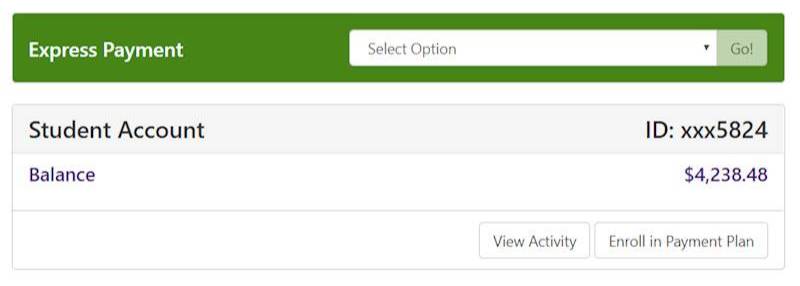
- To enroll in a payment plan, select “Enroll in Payment Plan” from the Student Account Overview box.
- Follow the prompts to choose the current term.
- Continue through scheduling your plan and signing the installment agreement.
- Complete all payment steps before the semester due date to avoid being dropped for non‑payment.
- Under the new wait list policy, students dropped for non‑payment are not guaranteed their original schedule upon reinstatement.
Trouble?
- If you have trouble making a payment in My Cardinal Connect or have questions about the process, contact the Business Office at: